
Free Audio to Text and Text to MP3 AI Tools: Cosmic Transcriber + CloudScribe Pro
Cosmic Transcriber
Turn audio recordings into text with Cosmic Transcriber for Windows. Download the desktop app below, then follow the transcription guide. CloudScribe Pro is an optional companion for turning reviewed text into MP3.
Cosmic Transcriber
Turn supported audio and video recordings into TXT / Markdown transcripts with your own OpenAI API account.
GitHub source code only. This browser-based edition is separate from the desktop ZIP above and is not its source repository. Tested by the developer on iPhone Safari; Mac Safari has not yet been manually tested.
CloudScribe Pro
Turn reviewed text into synthetic MP3 narration with your own Google Cloud Text-to-Speech credentials.
Two different jobs, two separate services. Bring your own credentials; OpenAI and Google Cloud usage are billed separately and are not included in a ChatGPT subscription.
Cosmic Desktop 1.0.29 (Windows x64): the current ZIP does not bundle the .NET runtime. Read its README.md first; install Microsoft .NET 10 Desktop Runtime (x64) separately if missing. Extract the whole ZIP into a writable folder and launch CosmicTranscriber.exe normally; do not run inside the ZIP. API usage is billed separately.
MP3 works without a converter. Other supported local audio/video files, including M4A, WAV, FLAC, Ogg/Opus, MP4 and WebM, require separately installed FFmpeg and ffprobe on PATH; neither is bundled or downloaded by the app. Conversion uses the first audio stream and makes a temporary lossy MP3, leaving the original unchanged. Codec support depends on your converter; protected or damaged files and videos without usable audio may be rejected. Import and conversion do not send an OpenAI request. Media formats and limits.
Cosmic Transcriber
New in 1.0.29: a guided first transcript
New to Cosmic Transcriber? Choose Start tutorial in the First time here? invitation. The seven-page walkthrough shows you how to connect your account, add recordings, choose a model and output folder, check estimated costs, and find your finished transcript.
You can skip the invitation, close the guide whenever you like, or reopen it with Quick start or F1. Keep it beside the app while you work; Show this area takes you to the relevant controls.
Reading the tutorial does not upload recordings or start transcription. When you choose Start transcription in the main window, audio is sent to OpenAI and API charges may apply. Cancelling cannot undo a request already sent.
This release also improves the queue layout when the tutorial invitation and a warning are visible together. It retains the earlier mouse-selection fixes and support for M4A and other compatible media formats.
What changed in 1.0.28?
The model selector now opens with a mouse click, its list follows the field when the page scrolls, and dismissal resets its open state. Escape during transcription asks before stopping because a request already sent may still be charged; Escape during local import stops that inspection. This release also includes multi-format media import. Read the change log.
Soh’s reviewed Windows 10/11 application for long recorded lectures, interviews, podcasts, Dharma talks, folders, and multi-part recordings. Features resumable batch transcription, TXT/Markdown output, and two complementary OpenAI model modes.
Key Capabilities at a Glance
Process long audio recordings, supported videos with audio, or a folder of files, save transcripts as TXT or Markdown, and resume compatible interrupted work from saved progress.
📂 Batch Audio Processing
Add supported audio/video files or nested folders using Files, Folder, Paste or drag-and-drop; inspect the imported queue before starting.
⚡ Resumable Checkpoints
Completed chunks are saved dynamically. Resume interrupted sessions without re-processing.
📝 Dual Export Formats
Outputs pristine plain text (.txt) or clean, formatted Markdown (.md) files automatically.
🔐 Secure Key Management
Optionally encrypt your API key locally using native Windows DPAPI user protection.
Examples of Use & Ideal Workflows
Cosmic Transcriber is tailored specifically for long-form, complex speech content where accuracy and context preservation matter most:
Dharma Talks & Spiritual Lectures
Useful for long talks, retreats and Buddhist philosophy recordings. With gpt-transcribe, provide relevant Pāli or Sanskrit terms and recording context. Review specialist terms and negations against the audio before publishing.
Podcasts & Panel Interviews
Process multi-speaker recordings using gpt-4o-transcribe-diarize to automatically segment dialogue into distinct speaker turns accompanied by timestamps.
Multi-Part Audio Series
Load entire multi-part series or nested folder hierarchies in a single step. The app handles long-file chunking and tracks completion checkpoints file by file.
Combine two transcripts
Use gpt-transcribe for the wording and gpt-4o-transcribe-diarize for speaker changes. You can ask ChatGPT to combine the two, then check the result against the recording before publishing.
Choose the Model by Purpose
Cosmic Transcriber supports two complementary OpenAI model modes. Selecting the appropriate model for your recording type ensures the best balance between wording fidelity and speaker structure.
gpt-transcribe (Default)
The newer high-accuracy general model. Use it as the controlling text when exact wording, specialist terminology, multilingual speech, and negations matter.
- Supports language hints, literal keywords, and recording context.
- Designed to prioritize wording and terminology. Check the transcript against the recording, especially names, specialist terms and negations.
- Note: Does not add speaker labels in the app’s current file workflow.
gpt-4o-transcribe-diarize
The older specialised speaker-labelled model. It identifies speaker turns and can include timestamps throughout the audio.
- Identifies individual speaker turns (Speaker A, B, etc.) and timing.
- Note: Cosmic Transcriber does not send prompt/context or structured keyword hints in this mode.
- Note: Speaker letters may reset between independently processed Parts.
Soh’s Recommended Two-Pass Method
Transcribe the same recording once with gpt-transcribe for the most reliable wording and once with gpt-4o-transcribe-diarize for speaker structure. Upload both outputs to ChatGPT; tell it to keep the first transcript as the wording authority and use the second only for speaker labels, timestamps, and turn boundaries. Ask it to mark uncertain alignments instead of guessing.
Copy-Paste Prompt for ChatGPT:
Get an OpenAI API Key
- Sign in to the OpenAI API key page and create a new secret key.
- Set up API billing in the OpenAI Platform billing page. API usage is billed separately from a ChatGPT subscription.
- Copy the key once and keep it private. Do not post it, place it in public files, or share it with other people.
Quick Use Guide
- Download and extract the ZIP, then start Cosmic Transcriber normally rather than as administrator.
- Enter the API key for the session, load it from
OPENAI_API_KEY, or optionally save it for the current Windows user using Windows DPAPI. - Add supported audio/video files or folders, choose the model and output options, then start transcription. Compatible completed chunks can resume from checkpoints.
CloudScribe Pro 1.0.8: From reviewed text to MP3
Optional text-to-speech companion · Windows · Version 1.0.8
Proofread your text, then use your own Google Cloud Text-to-Speech account to turn articles, translations or transcripts into MP3 narration. Version 1.0.8 adds an optional tutorial, improves file and folder imports, and checks more output problems before you spend. It also improves the option to skip spoken web addresses. You can still arrange a batch, review costs, and compare supported Neural2 and Chirp 3 HD voices using a complete document.
What changes in 1.0.8?
- A tutorial you choose to open: a fresh profile shows First time here? with Start tutorial and Skip for now. The invitation does not block the workspace or open the tour automatically. The choice is remembered; Help replays the walkthrough. Back, Next and Escape guide navigation do not approve a cost or generate speech.
- More careful handling of web addresses: when you choose to skip web addresses, the new rules still recognize links such as 84000.co but are less likely to remove ordinary sentences by mistake. They can still make mistakes, so read the complete preview before saving. The detailed rules and examples are below.
- Your older copies stay unchanged: previously saved narration copies and jobs keep the rules used when they were created. To use the improved rules, make a new narration copy from the original and review it separately. Existing audio and records of jobs with uncertain results are preserved.
- More reliable folder imports: CloudScribe can recognize supported Windows cloud folders, including available OneDrive folders. It skips folder links and unsupported special folders rather than risk repeatedly following the same path. Unreadable or unavailable folders are reported, while other readable files can continue. Importing from OneDrive does not mean it is a supported place to save the resulting MP3s; see the output-folder guidance below.
- Better handling of long names: when a title or MP3 filename is too long for Windows, CloudScribe shortens it without cutting a character or emoji in half. Track numbers and suffixes for duplicate filenames are included in the length check. One file that cannot be added to the library no longer blocks every later file, although a problem affecting the whole batch can still stop the import. Your source text and the names of jobs already started are unchanged.
- More checks before generating an article: CloudScribe checks the output folder and confirms that the required audio tools are still the approved versions before creating a new batch article job, and again before requesting more speech, including during recovery. Rehearse helps you find problems, but it cannot prevent every later disk failure. Long Audio saves its result differently: copying the MP3 to your chosen folder can fail after Google has already charged for the speech.
Earlier improvements are still available: you can close slow voice-list lookups, scroll through previews, compare full-document readings, reorder a batch, undo changes and reopen saved drafts. Each paid request still needs the required setup, review and approval. If a previous request has an uncertain result, check it before trying again.
Earlier improvements that remain available
Retained improvements from 1.0.7 and 1.0.6
- Dismiss a slow catalog lookup: while Voices loads or fully refreshes the connected catalog, use Close, Escape or the window close button. The app requests cancellation, and late results cannot overwrite newer screen state. If the background operation is still cleaning up, reopening keeps another catalog load blocked until it finishes.
- More usable previews in small windows: narration text can scroll while Save and Close remain reachable. Ordinary previews support Escape and return focus to an eligible opener. A copy save already underway must finish before dismissal.
- Clearer outline labels: paragraph and current-text entries have meaningful accessibility names instead of internal type names.
Also included from 1.0.6:
- Two voice-list buttons serve different purposes: Load connected voices / apply locale loads the available voices while keeping any still-valid checks for the same account, project and voice list. It does not extend their expiry. Refresh connected voices (full verification) runs the checks again and may require you to review an earlier plan again. Changed account details, project or voice list, or missing or expired checks, require fresh verification.
- Historical URL omission: new preparations in 1.0.6–1.0.7 used v2 and could omit conservative bare addresses such as 84000.co. Existing v1 copies, bound batches and jobs retain their original text and policy; they are not silently upgraded and their approval is not borrowed.
Full-document Neural2/Chirp 3 HD comparison arrived in 1.0.5. Batch drag-and-drop, ordering, Undo, saved drafts and the original URL-omission workflow arrived in 1.0.4. Busy-close safeguards for paid generation, samples, replay and export remain. Closing a window is not a refund.
Install: extract the complete ZIP and keep its folders together. Use START-CLOUDSCRIBE.cmd for the portable package, or follow the installation guide. Connect your own Google account using the guide, choose a verified voice, review the exact text and cost, then approve generation. Do not share credentials or copy another person's profile.
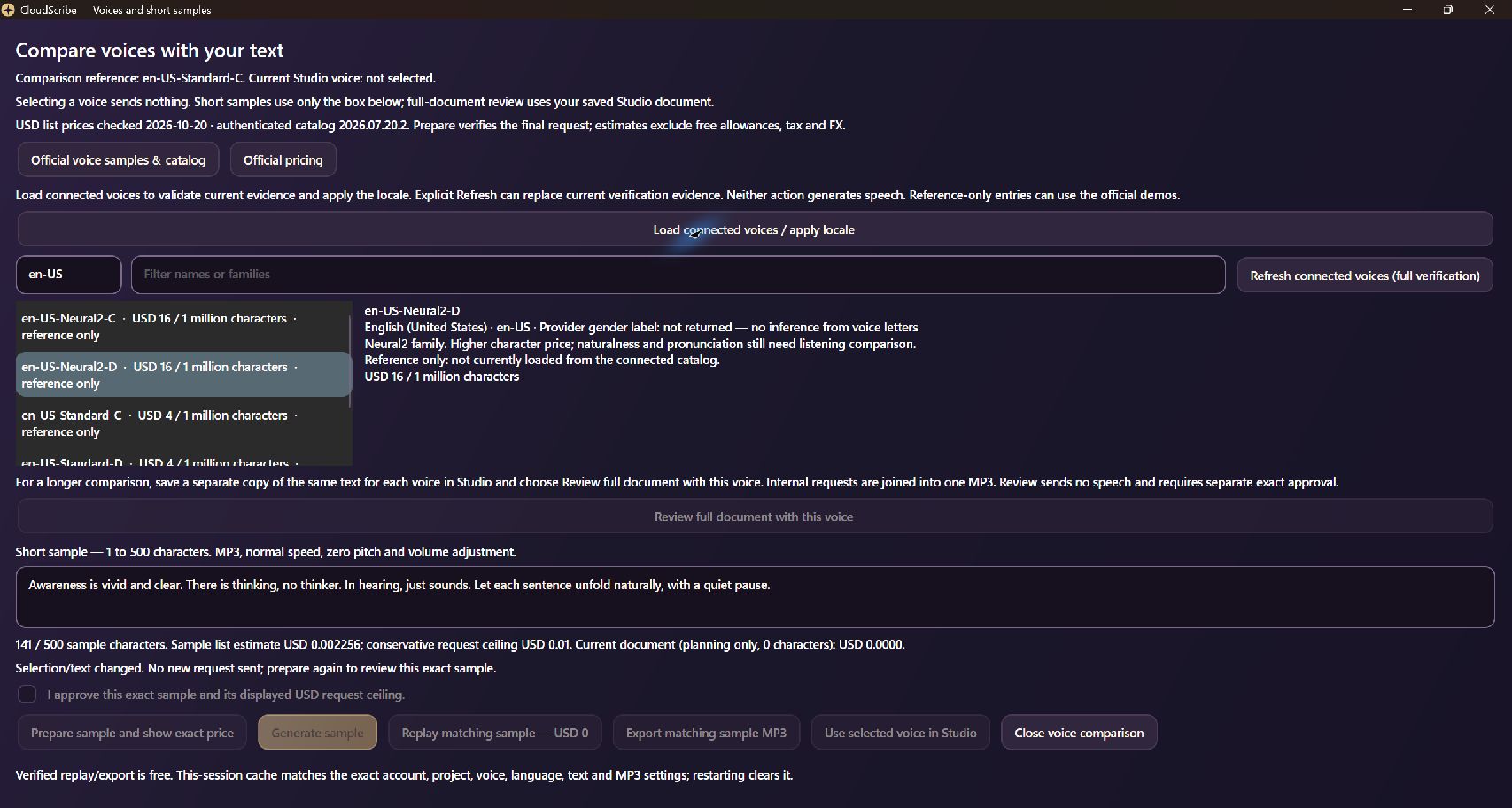
Compare two voices using the same complete passage
This compares synthetic readings of the same text; it does not clone a person's voice. Identical text can have different running times in different voices. The example below uses English voices. It does not imply Neural2 is available for Mandarin or that every catalog voice supports full-document narration.
- Save one document per voice: copy the complete comparison passage into separate documents using Library > New document, give each a distinct title and press Ctrl+S. Keep the text identical and the document identities separate. Preserve any earlier document and its audio. Save all edits; an empty document or unsaved changes cannot enter this review.
- Choose a connected voice: open Voices, set the language and region, then choose Load connected voices / apply locale and select a voice. This keeps still-valid checks for the same setup without extending their expiry. Use Refresh connected voices (full verification) when you need to check the setup again; you may then need to review an earlier reading plan again. Both buttons retrieve Google’s voice list without generating speech. A reference-only voice cannot generate audio. If the account, project or voice list changes, or the checks expire or are missing, verify the setup and review the plan again.
- Review the whole document: choose Review full document with this voice. This uses the saved Studio document, not the sample box. Check the exact document and voice, retained audio, remaining requests and maximum cost.
- Complete the required setup, then approve the cost: CloudScribe must be configured to allow that exact saved text, voice and reading plan. Each document also needs its own in-app cost review and approval. Missing, expired or mismatched permission will block generation. If you see Choose a separate document for this voice, open the document saved for that voice rather than altering an earlier job to bypass the warning.
- Keep and compare the results: repeat with the other voice's separate document. Generate only after its setup, review and approval are complete. Keep both MP3s and listen for pronunciation, pauses, names and the ending. Do not generate again merely to replay an existing result.
If the voice list loads slowly, use Close, Escape or the window close button. CloudScribe asks the lookup to stop. You may have to wait briefly before loading the list again while that operation finishes in the background. Older results will not overwrite newer selections. Closing a window does not cancel a charge or undo work Google has already received. During generation, samples, replay or export, the app may require the current operation to finish or stop safely before closing.
Choosing a voice is separate from testing a short sample. Use selected voice in Studio can work even when the sample box is empty, longer than 500 characters, or uses a voice family unavailable for short samples. The selected voice must still be currently available in your connected account. A short sample and a complete document each need their own setup, review and approval. Adding permission for a separate comparison preserves earlier documents, audio, jobs and spending records.
Short samples, full documents and Long Audio: which route?
- Official browser samples: Google's prerecorded examples do not read or send your document. They are a useful first listen, not proof of your article's final result.
- In-app short samples: the separate 1-to-500-character box supports Standard, WaveNet and Neural2 only. Review the exact cost and explicitly approve Generate sample; it may be billed. Chirp 3 HD does not use this short-sample route.
- Ordinary full documents: supported Neural2 and Chirp 3 HD voices require exact admission. Neural2 uses plain-text MP3 requests of at most 5,000 serialized bytes, including JSON escaping and fields, not 5,000 characters. Natural boundaries are preferred; otherwise text splits only between complete Unicode text elements. Indivisible input that cannot fit stops planning rather than losing text. This release does not add SSML or voice-control support.
- Limits still apply: full-document planning does not use the sample box's 500-character limit and is not unlimited. Existing resource bounds are 1,000,000 Unicode scalars per source and 10,000 coverage parts, alongside import, request-byte, provider, expiry and spending checks. Chirp keeps its existing planning rules. One batch uses one voice; comparisons require separate saved documents or batches and exact approvals.
- Long Audio needs its own setup for the permitted voice, language, storage and spending limit. It runs in the background rather than returning the entire recording immediately. Simply selecting Aoede or Neural2 does not enable this option or expand what it is allowed to generate.
The estimate, your approved limit and amounts reserved within the app are not Google’s bill. Choose a voice by listening: a higher price does not guarantee a better reading of your text. Read the full voice-comparison guide.
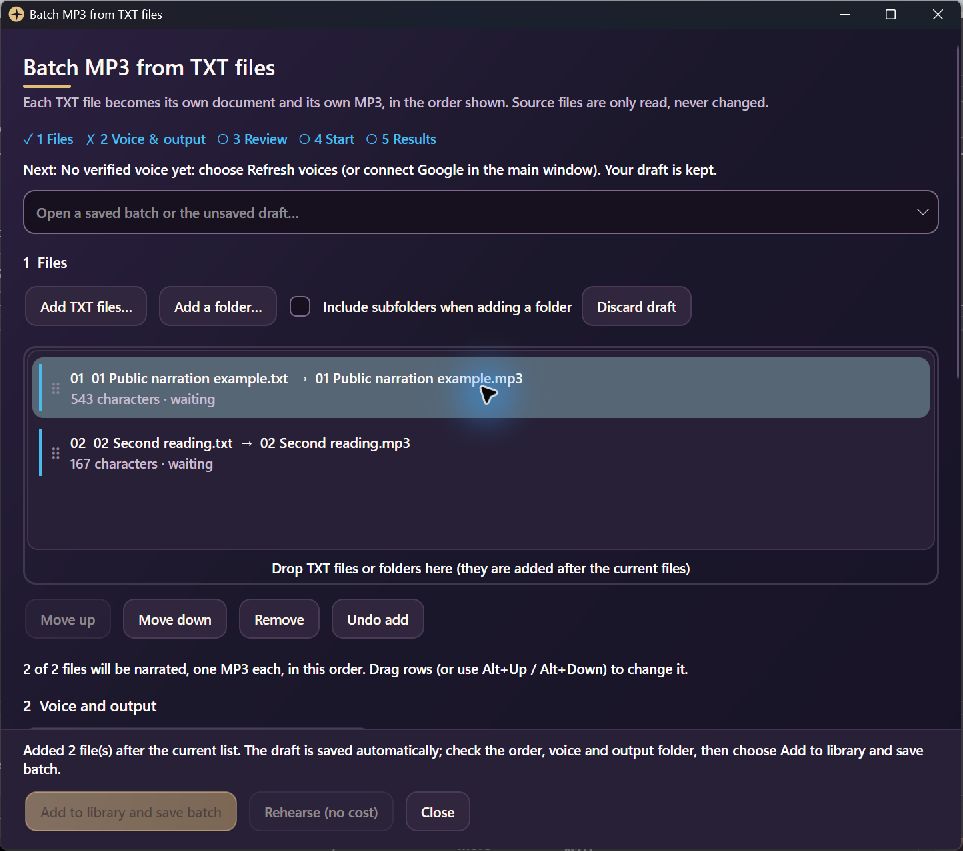
One TXT file, one MP3
Open Batch MP3 beside Create MP3, or open Queue in the page or player drawer and drop TXT files or folders into the visible drop area. This prepares a draft, not audio. A populated batch list accepts more files too; optional subfolder import and file pickers remain available.
New files append after your arranged list in natural folder/name order. The same source file added twice is ignored and reported. Different files with identical text remain separate tracks. Files are not merged into one book-length recording.
Arrange before you approve
Drag rows using their grips, follow the insertion line, and move a Shift/Ctrl selection together. Undo covers adds, moves, removals and discarding a draft while the window is open. Keyboard options include Alt+Up/Down, Alt+Home/End, Delete and Ctrl+Z.
Choose or refresh the voice inside the batch window. Successfully autosaved drafts survive reopening, even while waiting for a voice. Watch for save warnings and keep the window open if saving fails.
Skip spoken web addresses, keep the source
Opt into Skip web addresses in narration, preview the actual narration text and omission count, then save a separate narration copy. The original document and TXT remain unchanged. New preparations use v3: explicit HTTP/HTTPS and www links, plus conservative bare ASCII addresses such as 84000.co and EXAMPLE.COM, can be omitted. Inline Markdown labels and email addresses remain. V3 keeps additional sentence-like forms that v2 could remove; older v1/v2 copies retain their recorded text and policy. Always inspect the preview rather than assuming every omission is correct.
Batch drafts offer Preview selected narration text. URL-only inputs are excluded locally instead of becoming empty paid requests. Text with no recognized URLs needs no extra copy. Check the limits and preview below before saving.
Review the saved copy, including long text
For pasted or existing document text, use Create MP3's preview and Save and use narration copy. The copy opens for its own review and offers Open original in Studio. Unchecking the preparation option does not put URLs back into an already-saved copy.
A long copy offers Review this copy as a one-file batch. Choose an output folder and review it using your configured batch or Long Audio option. This new copy needs its own permission checks and spending approval. If another unsaved draft is open, CloudScribe keeps it safe; finish or explicitly discard it before continuing.
A practical first batch
- Prepare: proofread your articles or translations and save each intended track as a TXT file. Drop files or folders into Queue or Batch MP3. Choose whether to include subfolders, then arrange the list.
- Voice and output: choose a verified voice in the batch window, an engine preference and output folder. Optionally number the MP3 filenames and preview URL omission. Unsupported, empty, unreadable or oversized inputs are reported, not silently narrated.
- Save and review: choose Add to library and save batch. Source files are reread before saving. Review each file's engine and maximum, the batch total, and any missing setup or admission.
- Rehearse, then approve: Rehearse (no cost) checks the files, voice, writable output folder, audio tools, spending setup and approval without synthesizing speech. Resolve every blocking check. Preparing a draft or passing local checks does not itself approve a paid request.
- Run and inspect: after the required approval, Start processes files in order. Results separate done, failed, needs checking, skipped and waiting. Use Open output folder or Play selected MP3. Existing files are never overwritten; conflicting names receive a numbered suffix.
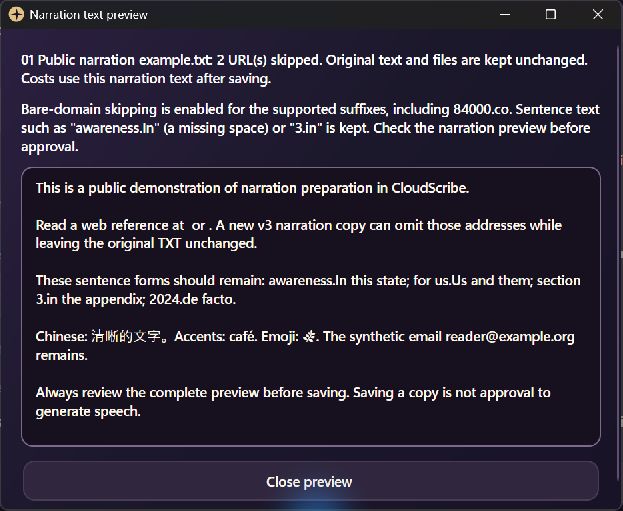
URL omission v3: inspect the preview before saving
New 1.0.8 preparations use url-omission-v3. They recognize explicit HTTP(S)/www addresses, inline Markdown destinations and selected bare ASCII addresses, including 84000.co, EXAMPLE.COM and read.84000.co:443/translation?q=one%20two#part. Markdown labels and surrounding punctuation/whitespace remain. Preparation does not generate speech.
Why the policy changed: the v2 policy used by 1.0.6–1.0.7 could mistake ordinary prose for an address. V3 keeps awareness.In this state, for us.Us and them, section 3.in the appendix and 2024.de facto. A bare-domain suffix must be all lowercase or all uppercase, rather than mixed case. The preceding label normally needs a letter; all-digit names are retained as domains only on com, org, net, co or io. Two-label names ending in .in or .us without a path or port are kept as text.
This is still not perfect: a lowercase run-on such as nothing.ai is wrong can still lose nothing.ai. A bare address directly joined to Chinese text, such as 見84000.co譯本, is kept. Keeping a doubtful token means it will be spoken. Review the result and use the original if it is unsuitable.
Exact recognition limits and exclusions
- The fixed suffix allowlist is com org net edu gov co io ai dev app info biz uk us ca au nz de fr jp cn in sg hk tw, subject to the v3 conditions above. This is a local lexical rule, not DNS lookup, the Public Suffix List or proof that a site exists. Common suffix-only tokens such as co.uk, org.uk, ac.uk, gov.uk, com.au, net.au, org.au and co.nz are kept.
- A bare host is limited to 253 ASCII characters, with 1–63-character labels containing letters, digits or internal hyphens. Valid numeric ports up to 65535 and supported ASCII paths, queries, fragments and percent escapes are handled. Commas, semicolons and exclamation marks delimit bare addresses, including paths.
- Email addresses, explicit non-HTTP schemes, local paths, malformed labels/ports/escapes, unbalanced path brackets, Unicode or punycode bare hosts, Unicode bare paths and adjacent Unicode letters/marks are preserved. Unknown suffixes and ambiguous tokens such as archive.zip, notes.md, this.is and decimal/version numbers remain. Explicit HTTP(S)/www links retain their broader existing rules.
- URL preparation retains its local bound of 16,777,216 UTF-16 text units per document and deterministic work limits. A complexity failure does not return a partial copy. Other import, provider, approval and spending limits still apply.
Older narration copies keep the rules used when they were created. Copies made with v1 keep web addresses without http or www; v2 can remove some ordinary text by mistake. The preview identifies older rules. Reopening a copy, resuming an import or moving it into a batch does not update its text or transfer its approval to a new request. If CloudScribe cannot confirm which rules belong to an older draft, it keeps the older behavior or blocks the operation rather than guessing. A draft that has never prepared a copy uses v3 when you first turn on URL skipping.
To apply the improved rules to older material, keep the existing job records and audio. Make a new narration copy from the original text, or a new batch from the original TXT files. Read the complete preview, complete the required setup for the new copy and approve its cost separately. Do not alter a job with an uncertain result just to send it again. The older Simplify URLs editing command is a different feature.
Choose the output folder before approving a batch
For ordinary article narration, choose an existing folder stored directly on your PC and a new MP3 filename. Folder links and other paths that Windows marks as reparse points, including cloud-placeholder folders with that marker, remain unsupported even if they appear writable. You can import TXT files from supported OneDrive folders, but do not assume you can also save the MP3 there. For this option, choose a separate ordinary local folder rather than using the input folder by default.
CloudScribe checks the destination and verifies that the required FFmpeg/ffprobe audio tools match the approved versions before creating a new batch article job, and again before requesting more speech, including during recovery. If it stops before creating a new job, it reports that nothing was sent. For an existing job, fix the folder or audio-tool problem and use Check again. Its audio, job record and reserved part of the spending allowance are kept. Do not create a replacement just to retry. Fixing the folder does not automatically approve continuation. A stopped job may need a separate review before it can continue. Completed jobs check their existing output without generating it again, and the final export checks the folder and tools once more.
Long Audio saves the result in two stages: it checks the audio tools before sending the request, then checks the saved speech before copying it to your chosen output folder. This copy can create a missing folder, reuse an identical file and refuse to overwrite a different file. It does not use all the same folder checks as ordinary article narration, so a copy failure can happen after Google has billed for the speech. If the app says speech is saved, retry the local copy instead of generating again. No option can detect every later disk or sync failure before you spend.
Choose the right narration route
Short passage: Create MP3 reviews a small exact request and requires explicit approval. Its ceiling is 5,000 compiled bytes, including request fields and escaping. This is not a 5,000-character limit; languages and escaping affect the byte count.
Complete article: with the required setup and approval for your exact text and voice, CloudScribe can generate a long article in smaller parts and combine the checked results into one MP3. Neural2 splits text to fit Google’s request-size limit; Chirp 3 HD uses its own sentence-based rules. Preparing these parts on your computer does not generate speech or approve spending.
Long Audio: with its own installed scope, voice, storage and spending setup, it can submit an eligible file as a whole request (up to 1 MB of text). Supported recovery may split a confirmed sentence-length rejection and assemble verified output. The route remains bounded by the installed cap and exact approval, not a promise that any text of any length will run.
Batch: create one MP3 for each usable TXT file. The Long Audio first setting uses Long Audio only when your setup allows the file’s voice, language, text and allowed limits. Other files need permission to use ordinary article narration. You can also choose Ordinary-only or Long-Audio-only. A file keeps the same method once it starts.
Originals, narration copies and interrupted work
URL omission is optional preparation, not a silent edit. In a batch draft, select a row to inspect the preview, then save. The imported original remains available and a separate narration copy is created only where needed. A saved batch locks the omission option; prepare a new batch to change it. The older Simplify URLs editing tool is separate.
CloudScribe uses the saved narration copy when calculating costs, checking length and generating speech. If you edit the original or the copy, work that has not started needs a new review and approval. Jobs already started, including those with uncertain results, keep their original records so you can check what happened. Editing a document does not approve sending those jobs again. If a copy is damaged, it is not silently repaired and reused. Keep existing job records and audio when making a replacement.
Before saving a draft, CloudScribe rereads the TXT files. It reports changes and uses the current content; a missing file stops the save. If a saved import was interrupted, reopening checks that the source file is exactly the same before continuing. It will not replace text already assigned to a request with changed content. Already imported documents are reused rather than added to the library twice.
Drafts and safe editing: what can change, and when?
- Successfully autosaved drafts contain file metadata and source hashes, not text. They return after closing the window or a crash. If autosave fails, the warning stays visible; keep the window open, use Undo if needed, and resolve the save problem.
- Ready or paused saved batches accept additional files while idle, including after earlier files have started. Additions and changed request content need new review and approval.
- Waiting files without a saved job can be moved or removed while idle. Unchanged remaining requests keep their approval. Started files cannot be rearranged or removed as if they were new work.
- The output folder can change only before any file starts. Failed-before-import files can be removed, fixed and added again while additions are allowed; retained audit history is not erased.
- Choose the voice inside the window. A saved batch can restore its voice with Use this batch's voice; missing connection or voice setup does not discard the draft.
Know what the result actually means
Done means CloudScribe checked that the MP3 in the output folder matches the expected file. It does not guarantee pronunciation or listening quality. If only the final copy failed and the app says speech is saved, Retry copies the saved MP3 without requesting new speech. Files already completed are kept if another file fails.
On completion, an ordered playlist and CSV summary are written without overwriting existing files. Track numbering is optional, does not number an already-numbered title twice, and counts usable narrated files. Duplicate text notes follow the current order so their referenced track stays meaningful.
Pause after this file waits before starting the next file. Stop now stops at a safe point; it cannot undo a request already received by Google. Failed and needs-checking files remain distinct from waiting files. A possible earlier charge remains visible even if separately approved replacement audio later succeeds.
The review shows three separate amounts: the estimated maximum cost, the amount you approved, and the part of your spending allowance set aside for requests that have started or whose results are uncertain. These are the app’s spending controls, not Google’s bill. Your batch and Long Audio limits restrict what you can approve; they do not approve a request for you. A paid batch cannot start without the required spending setup, although you can still prepare files and run Rehearse.
More detail: Long Audio setup, Windows installation and updates, safe sharing, and Google Text-to-Speech pricing.
Costs and privacy: the app shows an estimated maximum, your approved limit and amounts set aside for requests that are still running or need checking. These are not Google’s bill. Text submitted for narration is sent to Google Cloud. A draft stores file names, locations, sizes and checksums used to detect changes, not the text itself. Imported library documents and saved narration copies do contain text on your computer. Do not include private text, account credentials or your personal profile when sharing the app. Google Cloud charges are separate from Cosmic Transcriber’s OpenAI API charges.
Use the tools together: Cosmic Transcriber turns a recording into text. Check the transcript, then bring reviewed text into CloudScribe. The MP3 is synthetic narration, not the original recording or a reproduction of its speaker's voice. Narration is an optional extra: the AtR prompts and translation workflow do not require either app.
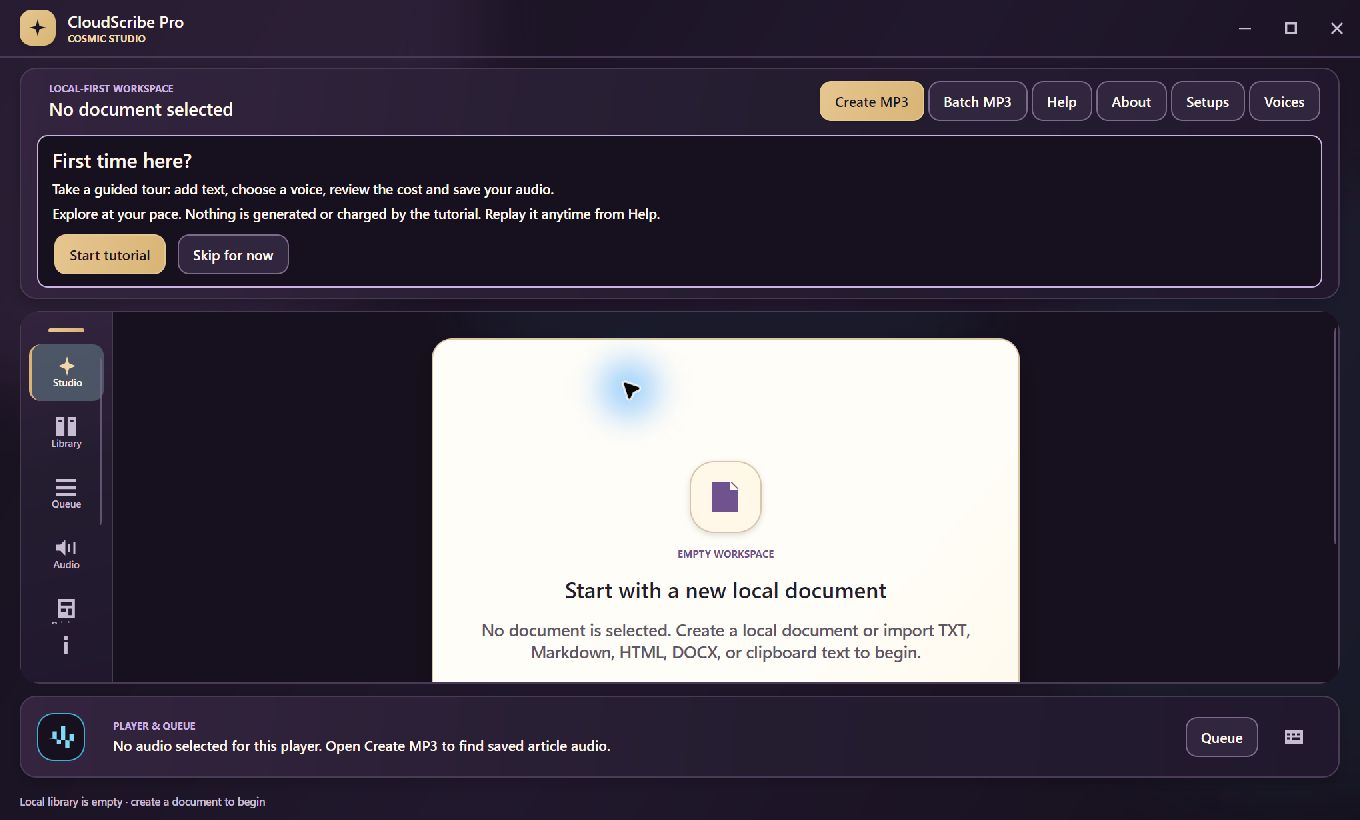
This CloudScribe section and its four demonstration screenshots describe version 1.0.8. The screenshots use example text to show the interface; they do not show a completed Google voice comparison. The software and interface checks described here do not establish audio quality, screen-reader usability or behavior at every display scale. Before sharing an MP3, listen for correct names, pronunciation and complete text.


Comments